For solo and small handyman businesses Book the job. Do it. Get paid.
A TV to mount, a sticking door, a drywall patch. Schedule it, price it from your own list or by the hour, take a deposit, and get it signed and paid by card, on your phone at the customer's door. Card payments run through Stripe; its standard fees apply.
Available on the App Store and Google Play.
- Schedule in time windows
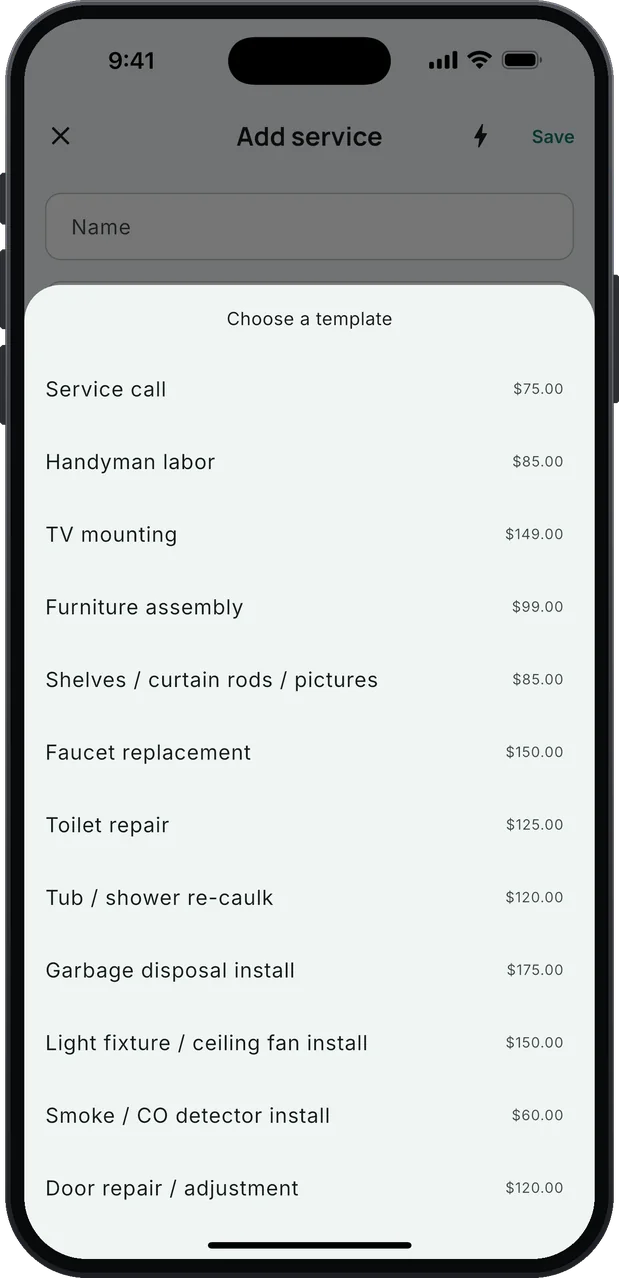
- 11 handyman services, your prices
- Hourly labor, worked out for you
- Deposits on estimates
- Invoices signed and paid by card
- Reports and what's owed
See it on your phone
Swipe through the screens from the App Store.
One day with OnsiteBoard
Five things you already do. Less typing in each of them.
-
Book.
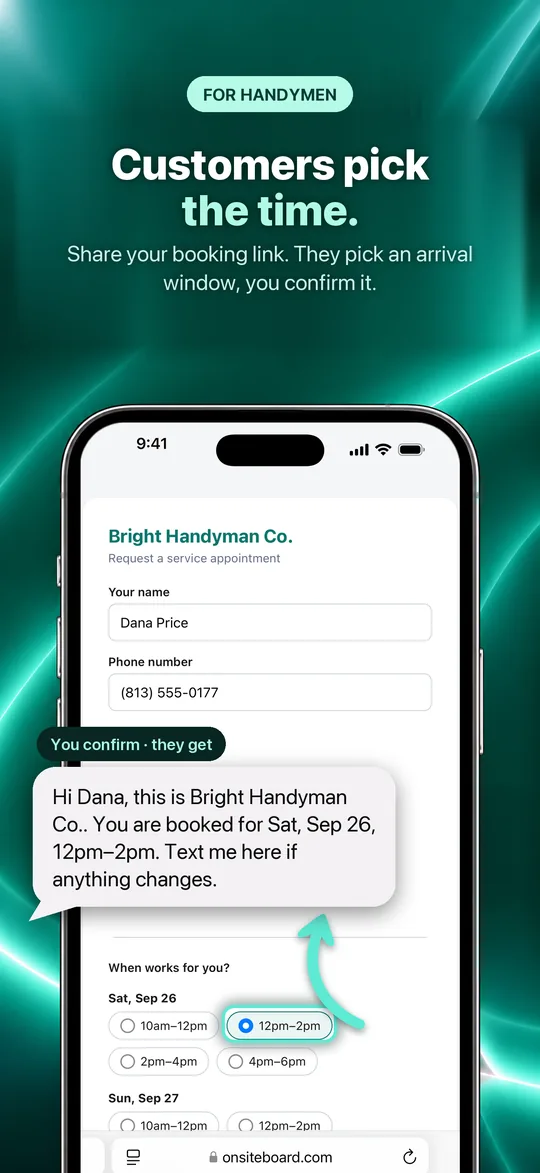
Customers pick a day and a window on your booking link. Or paste their text, "Hello, Sarah Kim here…": name, phone, address, what needs work and preferred time fill in. Either way it lands in the app, and you confirm the booking.
-
Drive.
Tap On my way. The status changes, a text to the customer opens with your message already written, and navigation opens to the address.
-
Do the work.
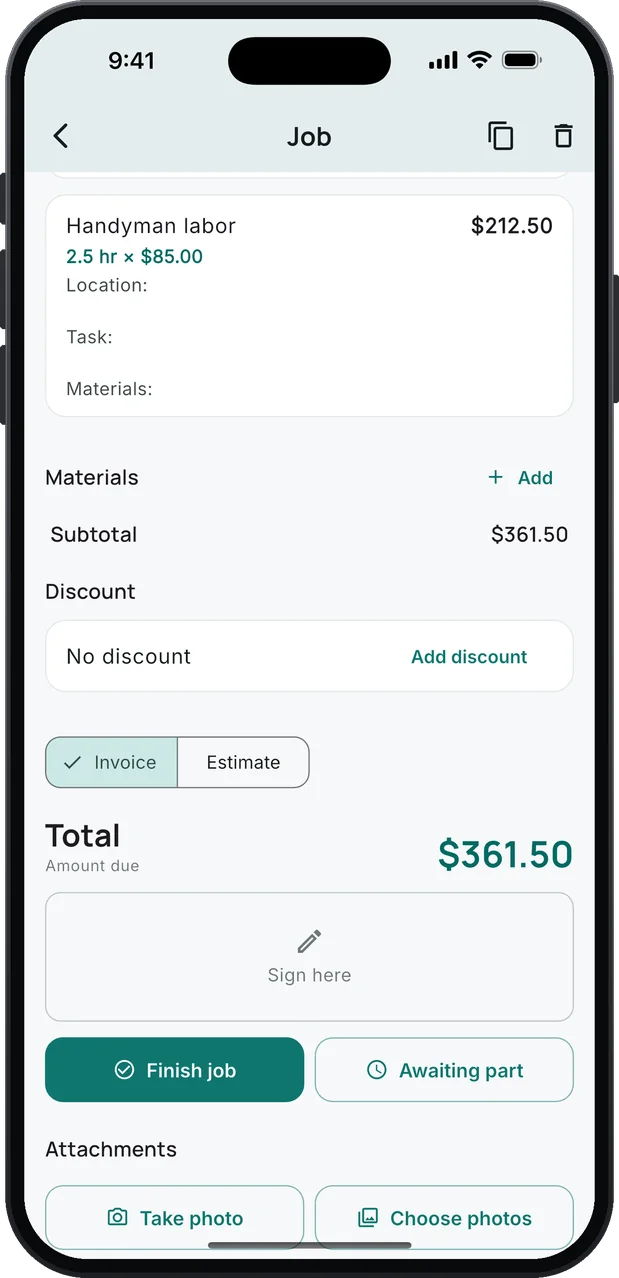
Tap Draft: the service lines are proposed from your notes as Location, Task and Materials, priced from your templates. Ran long? Charge by the hour, and 2.5 hr × $85 is worked out for you.
-
Sign.
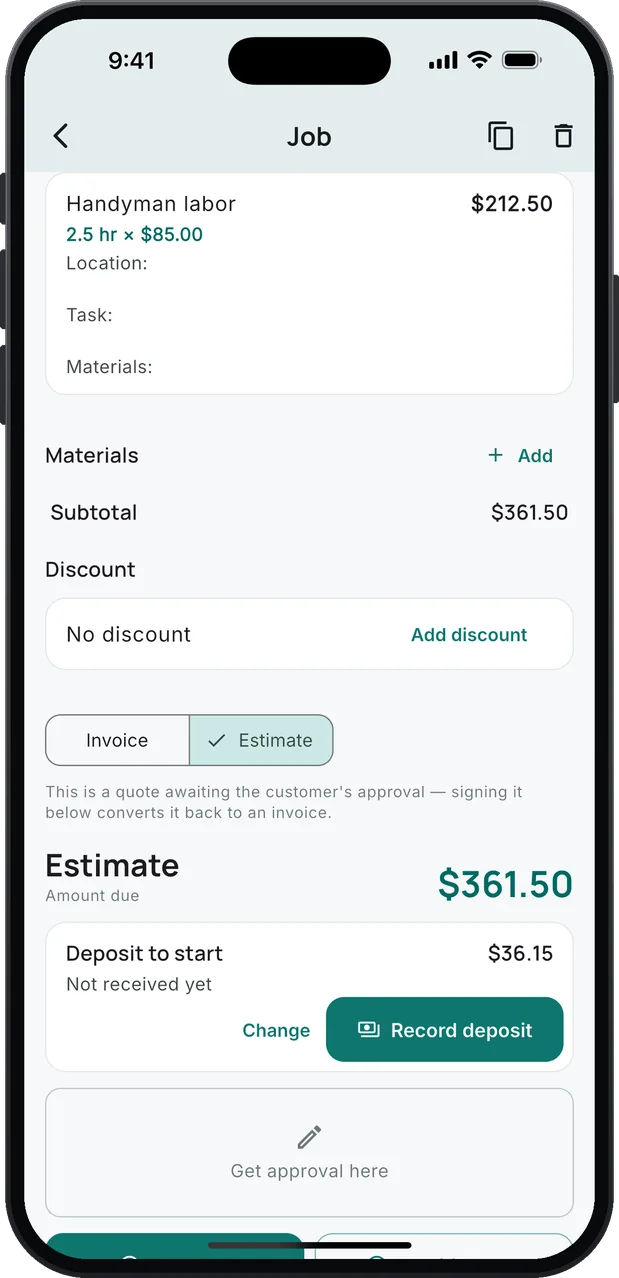
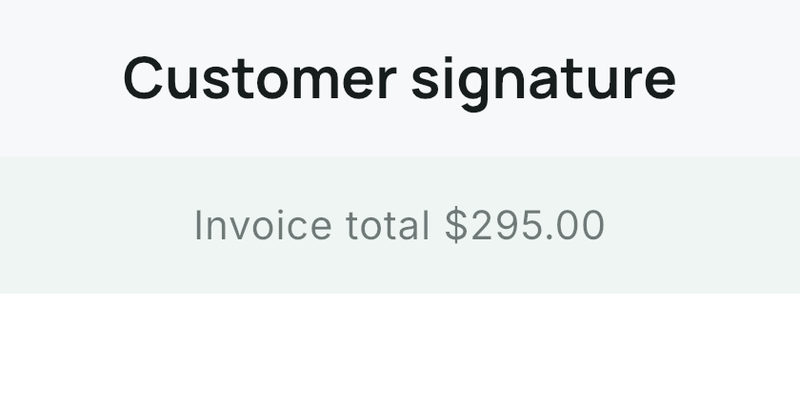
Hand over the phone. The total sits above the pad, so the customer signs for a number they've seen. Or text the estimate with a deposit to start, and they approve it from the couch.
-
Get paid.
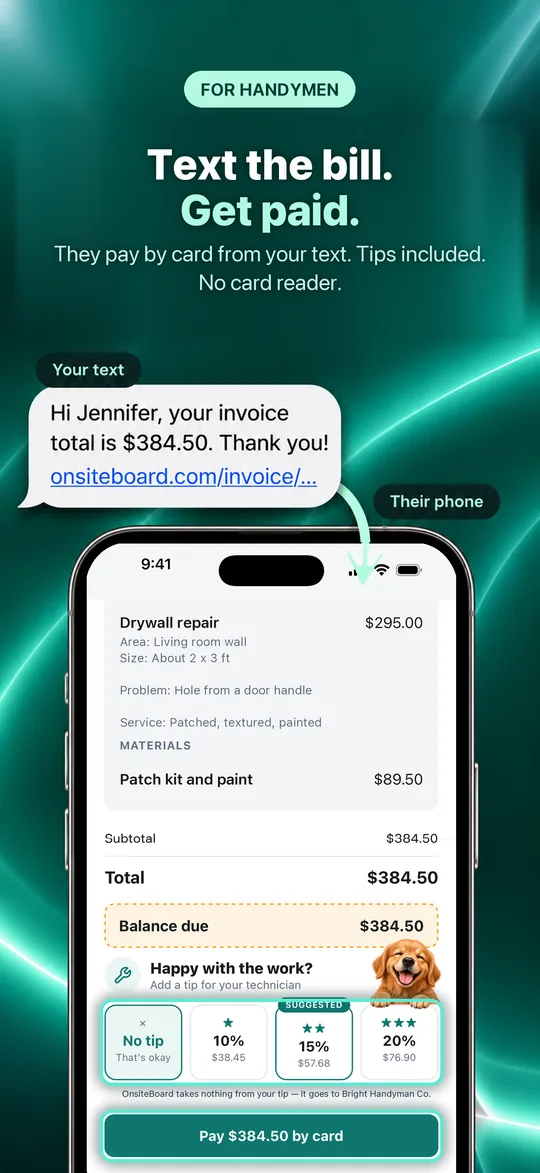
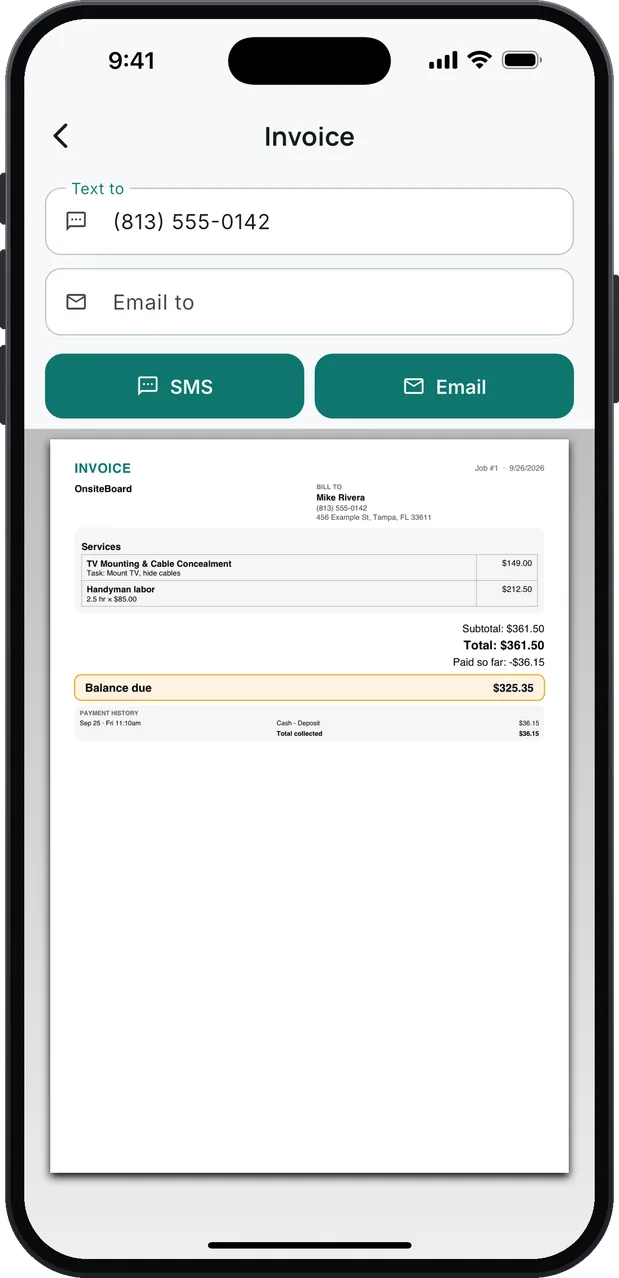
Send the invoice by text or email. The customer pays by card from the link, tip included, and Stripe sends it to your bank. The deposit is already counted. Cash or check? Record it on the job. Card payments run through Stripe; its standard fees apply.
What's in the box
Everything you need. Nothing you don't.
Your day, in time windows
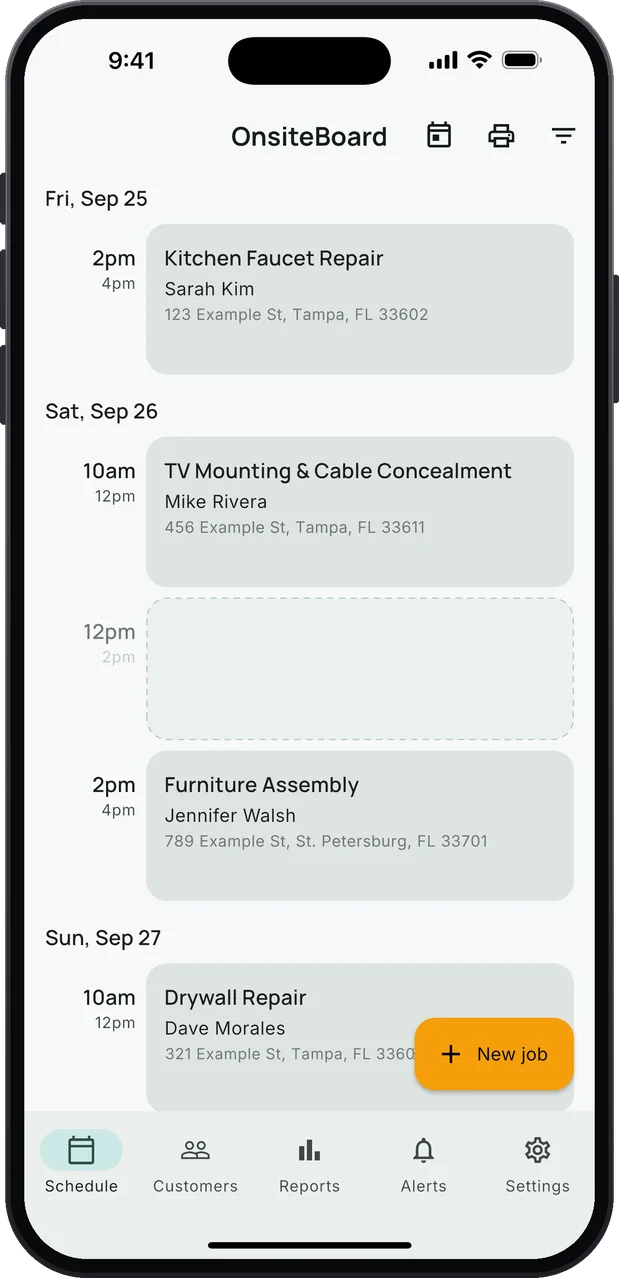
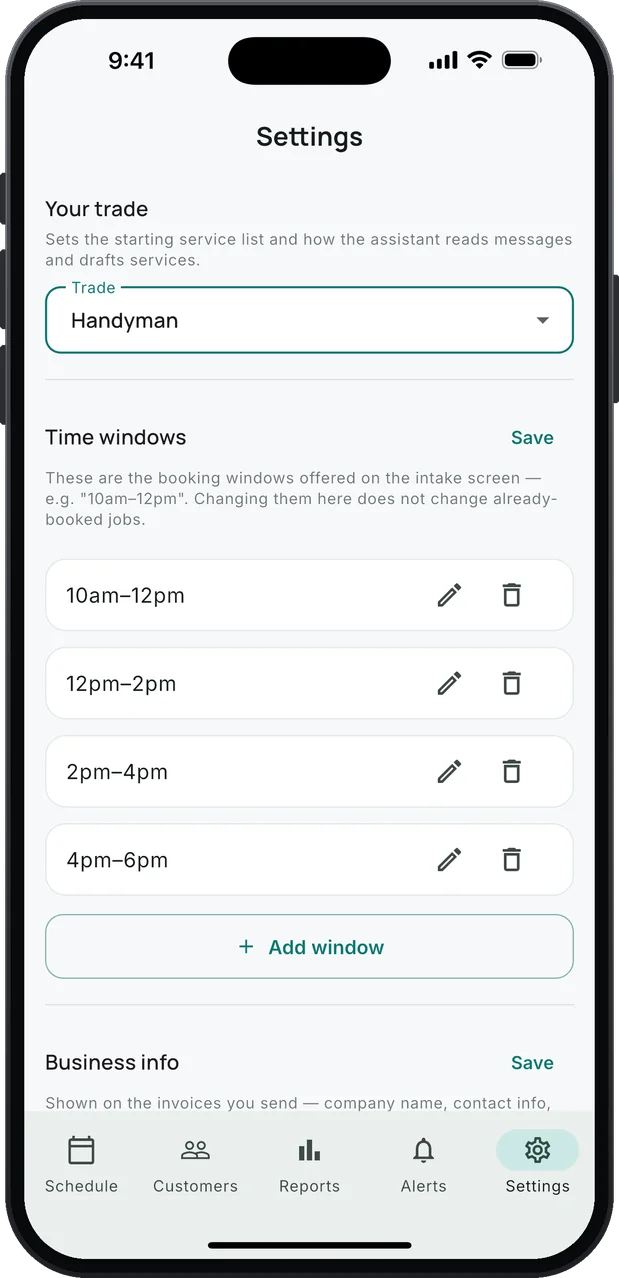
Jobs sit in the arrival windows you set, 8–10, 10–12, and so on, with a reminder before each one.
Jobs that come in on their own
Customers pick a day and a window on your booking link. Or paste their text, and the name, phone, address and what needs work fill in.
Handyman services, ready to go
Everyday jobs to start from, TV mounting to a room of paint, each with a starting price you change in Settings.
Hourly labor
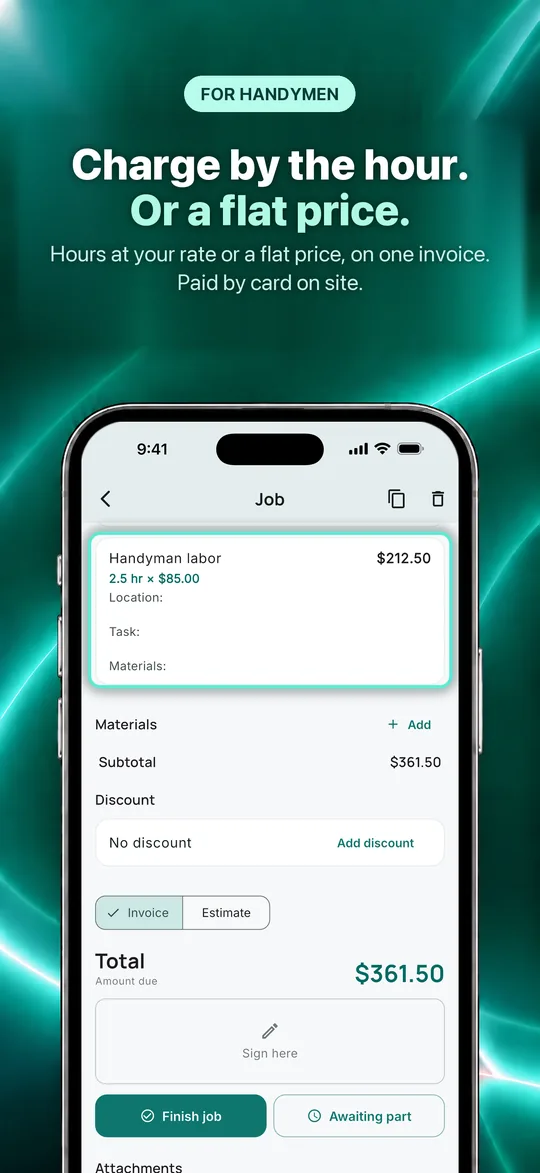
Hours times your rate, worked out to the cent as you type: 2.5 hr × $85.00 = $212.50. The hours print on the invoice.
Deposits on estimates
Ask for a deposit up front, as a percentage or any amount, within your state's limits. Record it, or the customer pays it by card. The invoice counts it as paid. Card payments run through Stripe; its standard fees apply.
Draft from your notes
Tap Draft and the service lines are proposed from the job's notes as Location, Task and Materials. Prices come from your templates only; you edit and save.
Estimates and invoices on site
Services and materials from your templates, with discounts and sales tax, as a PDF you can print.
Signed on your phone or online
The customer signs on your screen, with the total right above the pad, or approves the estimate from a link.
Know who's calling
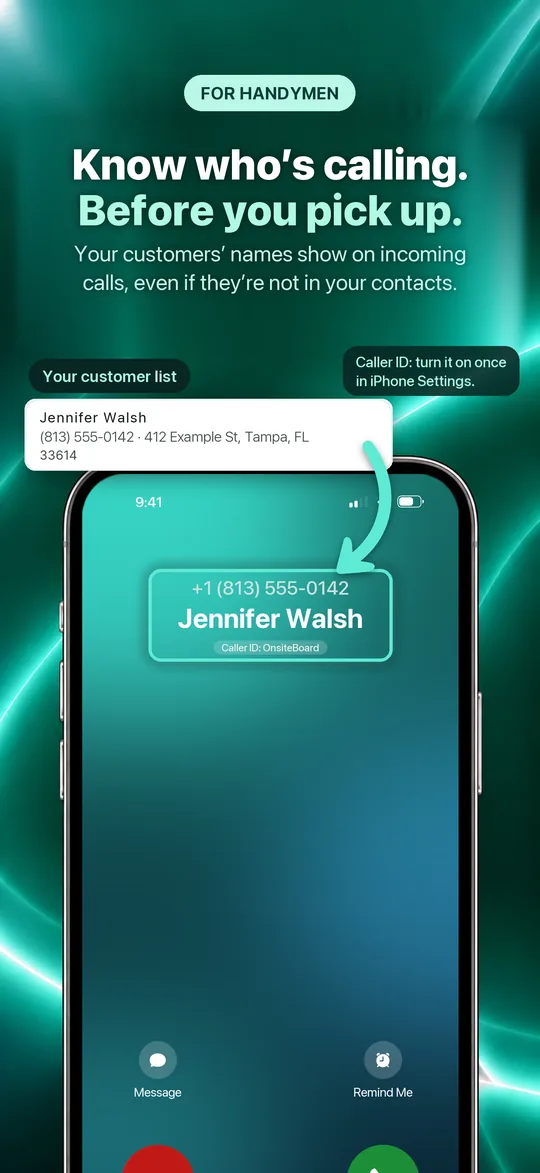
On iPhone, a customer's name shows on the incoming call, even if they're not in your phone's contacts.
Remind in one tap
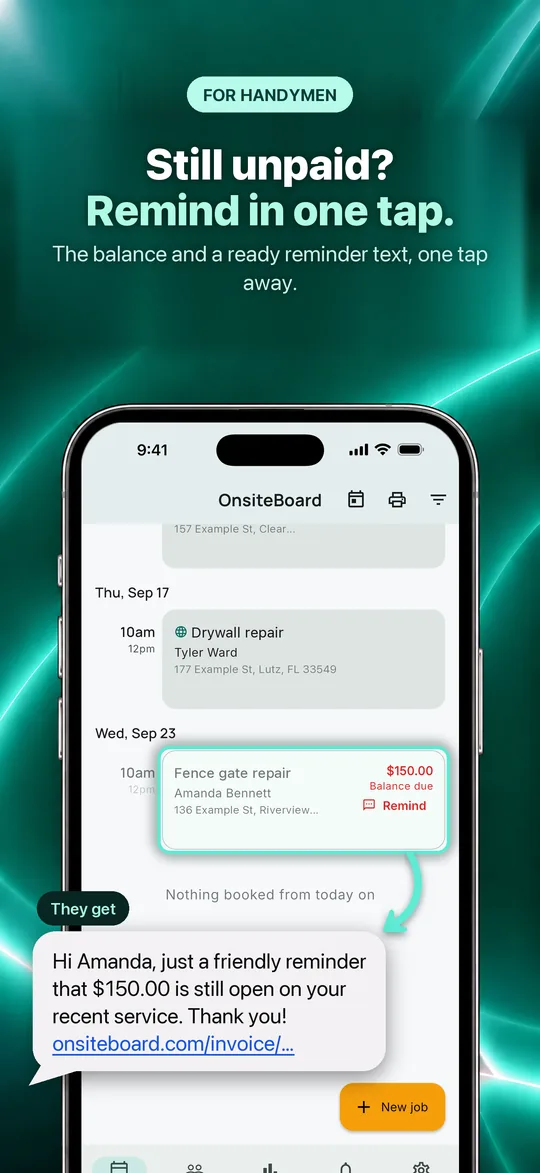
Finished jobs that still owe money show the balance in red on your schedule, with a Remind button that writes the text for you.
Paid by card, no reader
Customers pay the invoice from a link and can add a tip; Stripe sends the money to your bank.
Customers with history
Search by name, street or phone, see every past job, import from a spreadsheet or CSV, export any time.
Reports that answer the question
Revenue collected, jobs completed, average ticket and what's still owed, by week, month or year.
Jobs save without signal
In the phone app, open your jobs and add new ones in a basement or a crawl space; they sync when you're back in range.
Also in there: one-tap On my way, with a ready-made text and navigation · alerts when a customer books, signs or pays, cleared with a tap once you've seen them · message templates · a PDF of every estimate and invoice · your trade in Settings, so the service list and the assistant fit handyman work.
Charge by the hour. Get the deposit before you buy materials.
Not every job fits a flat price. And you shouldn't be the one fronting a new vanity or three gallons of paint.
- 1
Price it.
Pick a service from your list, or turn on Charge by the hour and enter the hours and your rate. The line works itself out as you type: 2.5 hr × $85.00 = $212.50.
- 2
Ask for a deposit.
On the estimate, tap Ask for a deposit: 10% of the total, more where your state allows, or type any amount. The estimate PDF and the customer's page show Deposit to start with the amount.
- 3
Collect it.
Tap Record deposit for cash or check, or the customer pays it by card from the estimate link. The card charge is the deposit only, with no tip. Card payments run through Stripe; its standard fees apply.
- 4
Invoice the rest.
When the estimate becomes the invoice, the deposit is already on it: Paid so far, the balance due, and "Cash - Deposit" in the payment history.
Card deposits go through the same Stripe account as your invoices, so connect it in Settings first. Cash and check deposits work without it.
Start free trial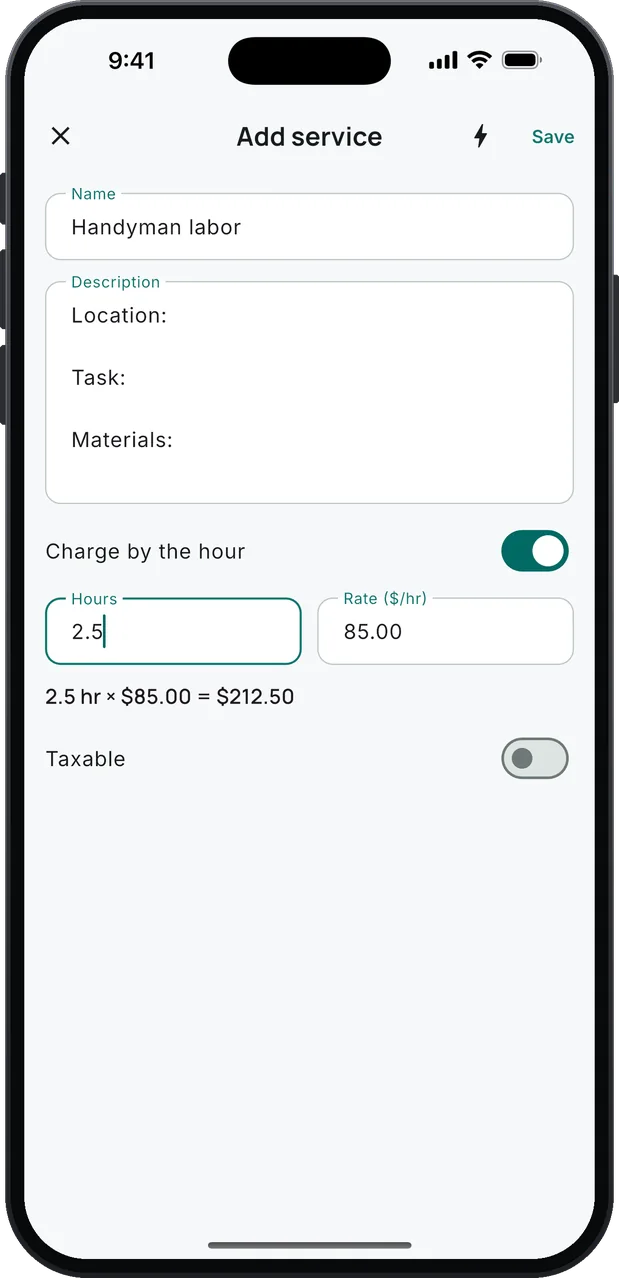
A Book Online button for your website.
Every account comes with its own booking page. Put the link behind a button on your website, your Google Business Profile, Facebook, Nextdoor or Yelp, and customers send a booking request for a window you're free; you confirm it with one tap.
- Your windows. The page offers the arrival windows you set in Settings, and nothing else.
- Only times you're really free. The page reads your schedule, including jobs you put in by hand, so a customer can't book on top of work you already have.
- Notice you control. Set the earliest day in Settings: one day means a full 24 hours from the moment they book.
- It lands in the app for you to confirm. Name, phone, address and what needs doing, in the arrival window they picked, with an alert on your phone. Tap Confirm booking and the customer gets their confirmation email.
- One window, one request. Two people on the page at once can't both take the same window.
<a href="https://onsiteboard.com/book/your-link">Book online</a>
Copy your own link from Settings → Your online booking link.
Two small things you'll use every day.
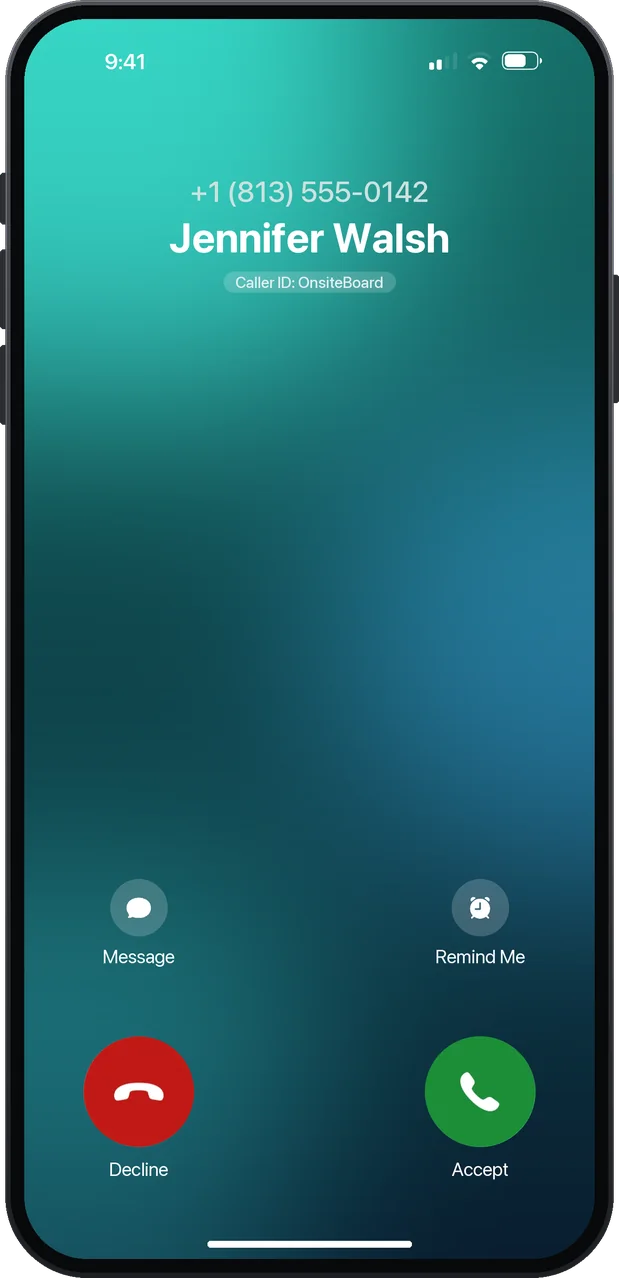
Know who's calling.
Your customers' names show on incoming calls, even when they're not in your contacts. Pick up knowing it's a customer, not a spam call. iPhone only.
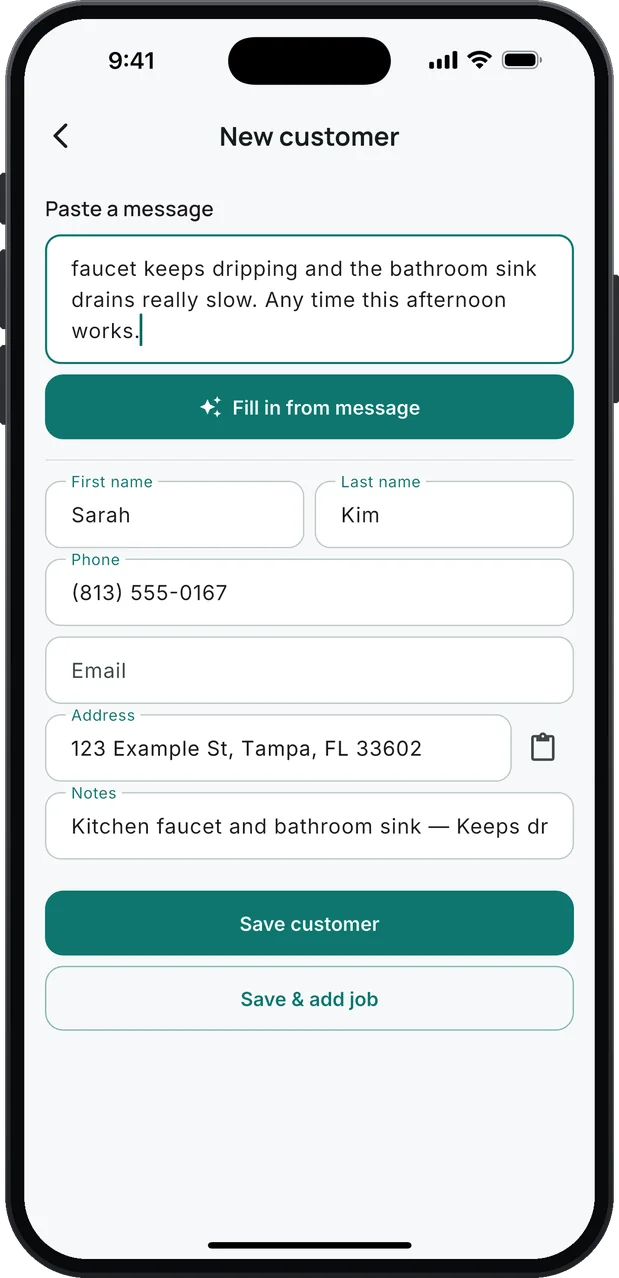
A text becomes the customer.
Paste the message and tap Fill in from message. "Hello, Sarah Kim here…" becomes Sarah Kim, with her phone, address and what needs work in the notes. Check it, save, add the job.
Get paid before you leave the driveway.
Text the invoice. The customer opens it, signs it, tips, and pays by card. No app on their side. No card reader on yours. Card payments run through Stripe; its standard fees apply.
- A hosted invoice page. Every estimate and invoice is a link you send by text or email. The customer sees the line items, the hours, the totals and the balance due — no account, no download.
- Sign online. The customer signs to approve, right on the page. An estimate can be declined, too, and you're told either way.
- Pay by card. One button takes the balance through Stripe. The customer's card number never touches OnsiteBoard.
- Tips, built in. The invoice page offers no tip, 10%, 15% or 20%. Each tip is its own line in the job's payment history.
- The deposit counts. Money taken on the estimate shows as Paid so far, so the customer only pays the balance.
- Your bank, your money. Payouts go to the Stripe account you connect from Settings, inside the app. Stripe may ask to verify your identity. Stripe's card processing fee applies; OnsiteBoard adds no fee of its own.
- Cash and check, too. Record any payment on the job. Reports show what's been paid and what's still owed; the job's payment history shows each payment and each tip.
- Still unpaid? Remind in one tap. A finished job that still owes money shows the balance in red on your schedule. Tap Remind and a text with the amount and the invoice link is ready to send.
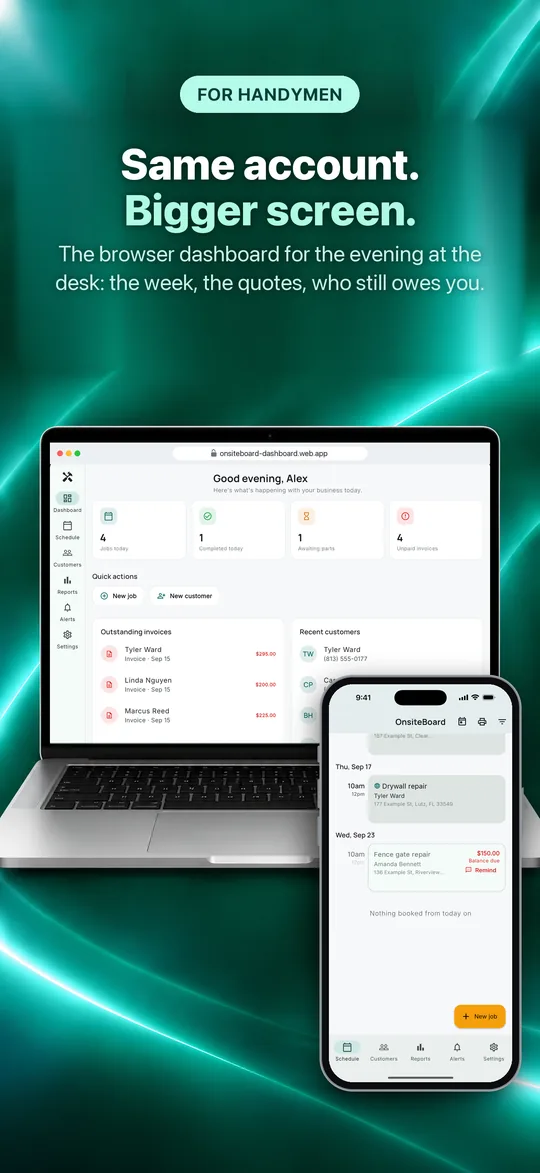
Same account. Bigger screen.
The browser dashboard is for the evening at the desk: the week, the quotes, and who still owes you.
- Today at a glance. What's on today, what came in this week, what's outstanding.
- The week as a grid. Your time windows down the side, days across. An empty cell is a free window.
- The day's route. The stops in order, the drive between each pair in miles and minutes, and a map, all estimated from the addresses on the jobs. Hand the whole run to Google Maps in one click.
- Needs attention. Unpaid invoices by age, jobs waiting on a part, and payments and bookings as they come in.
Nothing to install. Same sign-in as the phone. Book jobs, edit customers, send invoices, run reports and export CSV, with a keyboard.
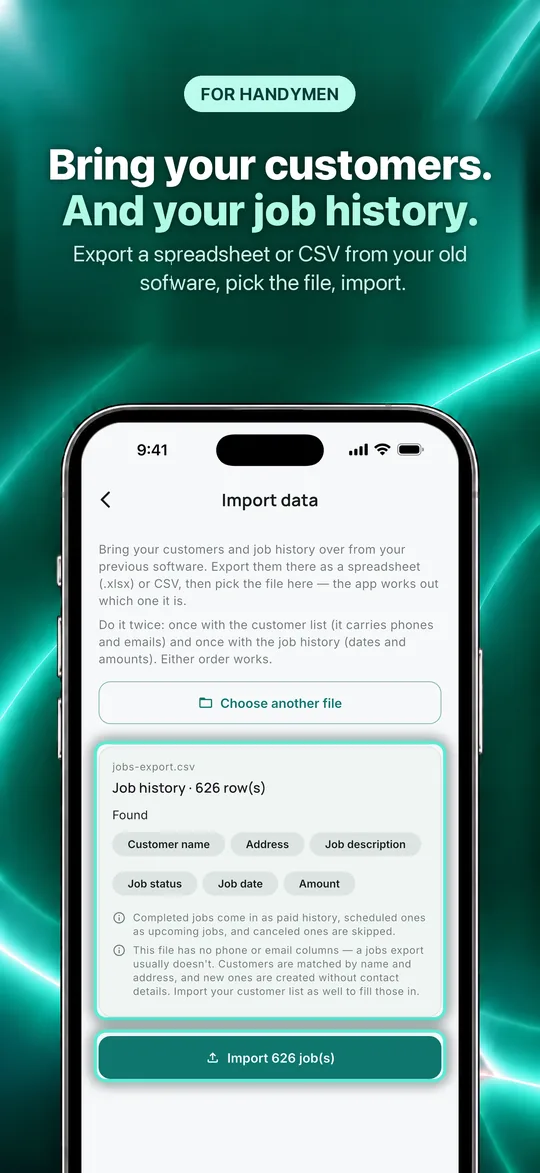
Bring your customers and jobs with you.
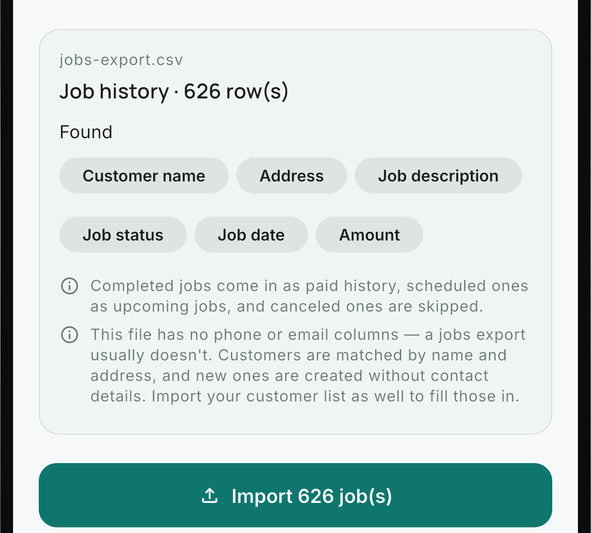
Export a customer list or a job history from your old app or spreadsheet, as .xlsx or CSV, and pick it in Customers. A job history comes in too: each past job with its total and payment, so your work history and revenue reports are there from day one. OnsiteBoard works out which kind of file it is and shows you what it found before anything is imported.
It's built not to double anyone up. Every row is matched against the customers you already have — by phone number first, then by name and address. A match only gets its blank details filled in, nothing you typed is overwritten, and a repeat is skipped. Run the same file twice and you get the same customers, not two of each. Everything exports back out any time.
Handyman business software for a small shop
OnsiteBoard is a field service app for a small home service business: schedule the job, send the estimate, do the work, send the invoice and get paid.
Handyman scheduling app
Jobs sit in the arrival windows you set, 8–10, 10–12, and so on, with a reminder before each one. Customers pick a day and a window on your booking link.
Handyman invoice and estimate app
Build estimates and invoices from your services and materials, get them signed on your phone or online, and send them by text or email. Customers can pay by card from the link you send. Card payments run through Stripe; its standard fees apply.
CRM for a handyman business
Search by name, street or phone, see every past job, import from a spreadsheet or CSV, export any time.
Handyman software for one- to three-person shops
Made for solo service pros and one- to three-person shops, not for a fleet. One plan with every feature. 14 days free, no card to start.
One plan. Every feature.
Try all of it free for 14 days. No card needed to start.
or $479.00 a year (about $39.92/mo). Save about $120 a year with the yearly plan, compared with paying monthly.
- Online booking, signatures and payment reminders are in the one plan. No add-ons, no higher tier.
- 14 days free, no card to start
- iPhone, Android and the browser dashboard, one account
- Cancel anytime in your App Store or Google Play settings
Billed through the App Store or Google Play; renews until you cancel. You can start in a browser. The plan itself is bought in the iPhone or Android app. After the trial, without a plan, your jobs, customers and invoices stay viewable and exportable. Creating new work and sending documents by email from OnsiteBoard need a plan. Stripe's card processing fees are separate.
Working out your prices? Use the handyman hourly rate calculator.
More on this: Card payments · Online booking · Payment reminders · Import customers · Move your data from another app · Job estimate template
Questions handymen ask
I'm just starting out. Where do I begin?
Can I do electrical or plumbing jobs?
Can I charge by the hour?
Can I take a deposit before I start?
Are the service prices set for me?
Does it work for other trades?
Do I need a card reader?
Does it work offline?
Can I import my customers?
What about Android?
Can my customer pay without an account?
What happens after the trial?
Is my data mine? Can I export it?
Do you track my location?
Can it draft my invoice?
A customer texted me instead of booking. Do I retype it?
Is OnsiteBoard a CRM for a handyman business?
Free handyman invoice templateFree handyman estimate template
Start with tomorrow's jobs.
Download OnsiteBoard, pick Handyman when you sign up, add tomorrow's jobs, and send your first invoice from the driveway. 14 days free, every feature, no card to start.
Available on the App Store and Google Play.